


Set up Manie on iPhone

A one-time Shortcut passes your payment messages to Manie, in three steps.

iPhone4 min readUpdated 

Step 1 of 3 in Manie on an iPhone, with a New Automation list and Message highlightedStep 2 of 3 in Manie on an iPhone, with a Message Contains box and RWF typed inStep 3 of 3 in Manie on an iPhone, with the Create Manie Transaction action

Sample figures

On this page3 steps
  1. Before you start
  2. 1Find Message in Shortcuts
  3. 2Run it when a message contains RWF
  4. 3Pick Create Manie Transaction
  5. If something does not look right

iPhone does not let apps read your texts, so your iPhone passes them on to Manie. You set that up once, in Shortcuts. This guide has the three steps, and a picture for each small step. The app also shows each one with a short video.

The orange outline marks what to tap or check.

Before you start

  • Manie on your iPhone, from the App Store. Its Shortcuts action needs iOS 16 or later.
  • An MTN or Airtel mobile money line on that phone.
  • The Shortcuts app. Manie has a button that opens it for you.
Step 1

Find Message in Shortcuts

Open Manie. On the first screen, scroll down and tap Show Me How. You land on Step 1 of 3. Tap Go to Shortcuts.

Manie opens the Shortcuts app. The small steps below show what to tap in it.
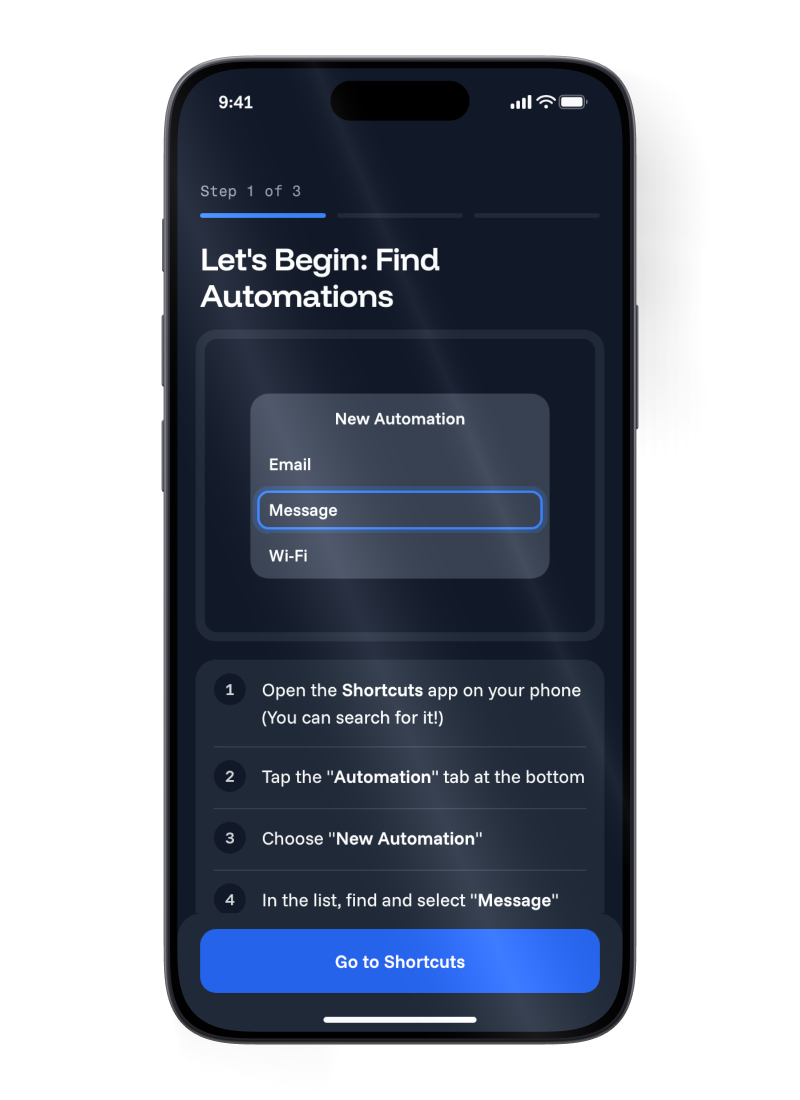
Step 1 of 3 in Manie on an iPhone. A New Automation list with Message highlighted, four numbered steps below it, and a Go to Shortcuts button
  1. Step 1.1

    If Shortcuts did not open, go to the Home Screen, tap Search, type Shortcuts, and tap the Shortcuts app.
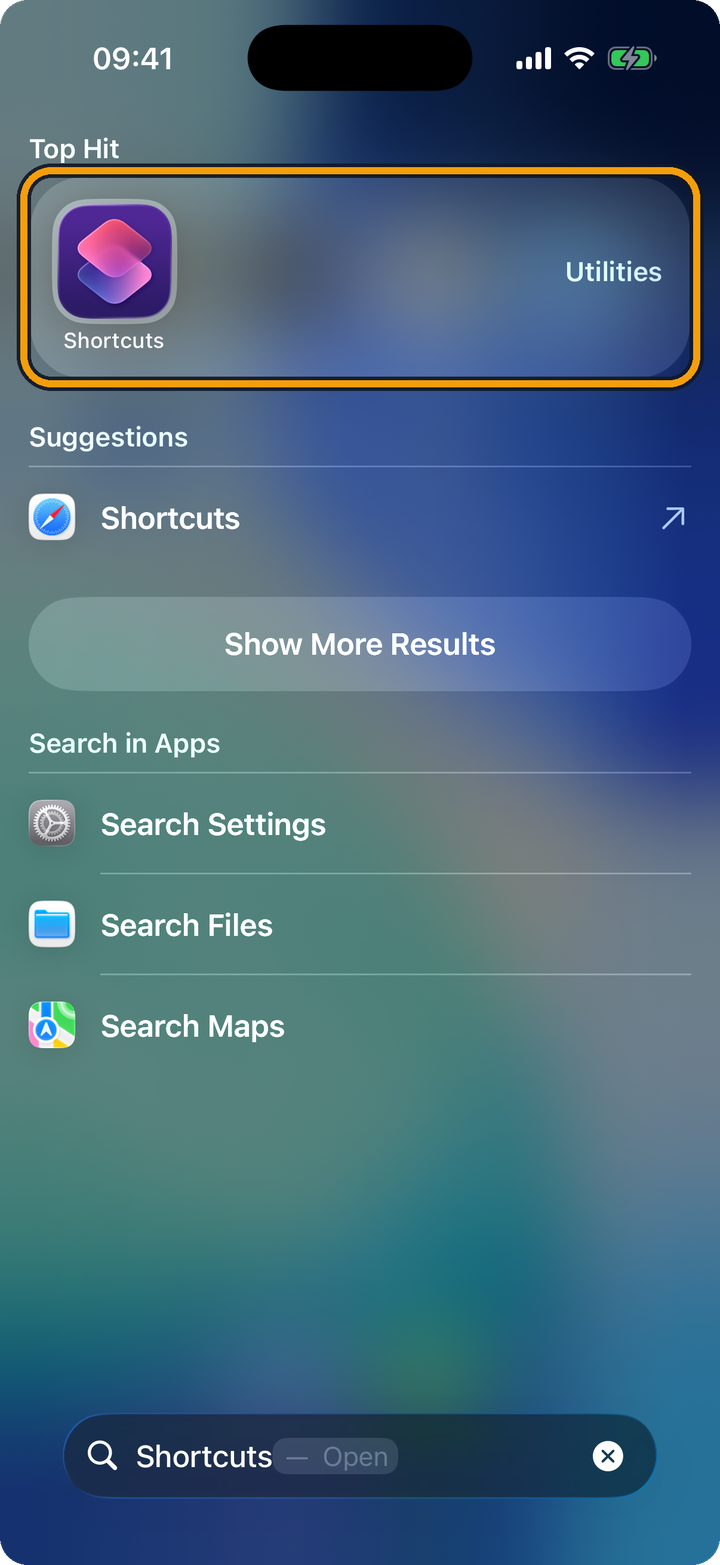
    The iPhone Search screen, with Shortcuts typed in the search bar at the bottom. The Shortcuts app shows as the Top Hit, with Utilities at the right of the tile. The orange outline marks the Top Hit.
  2. Step 1.2

    In Shortcuts, tap Automation at the bottom.
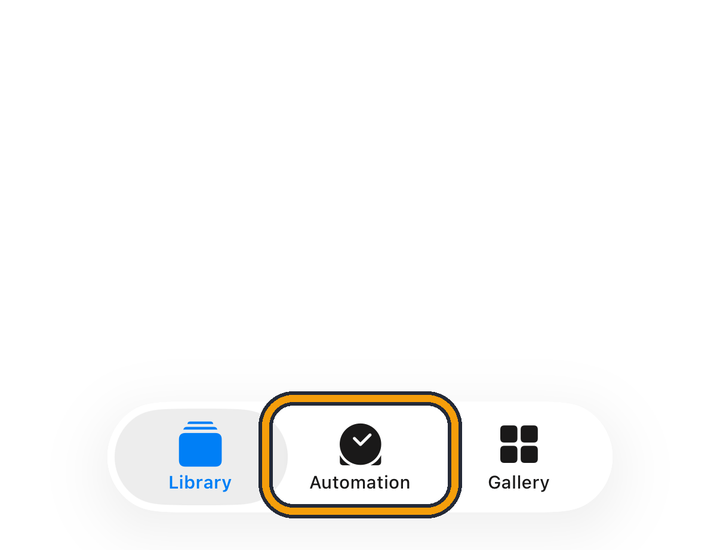
    The bottom bar of the Shortcuts app, with three tabs: Library, Automation and Gallery. The orange outline marks the Automation tab.
  3. Step 1.3

    Tap New Automation. If you already have automations, tap the + button at the top right instead.
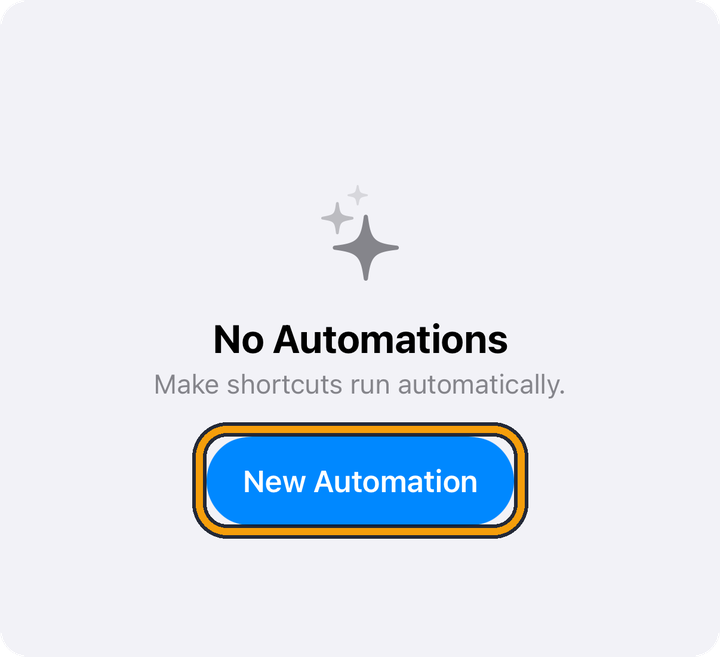
    The Automation tab with nothing in it yet. It says No Automations, Make shortcuts run automatically, above a blue New Automation button. The orange outline marks the New Automation button.
  4. Step 1.4

    Tap Message. It is below Email.
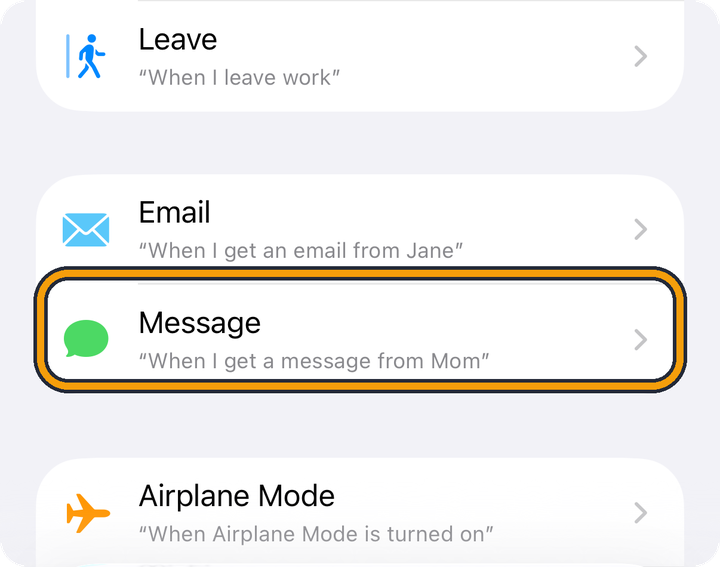
    A list of automation types in Shortcuts, with Leave, Email, Message and Airplane Mode. The orange outline marks Message, which is below Email.

Go back to Manie and tap Okay, What's Next?

Step 2

Run it when a message contains RWF

You land on Step 2 of 3. Tap Copy Text. Manie copies the trigger text, RWF, and opens Shortcuts again.
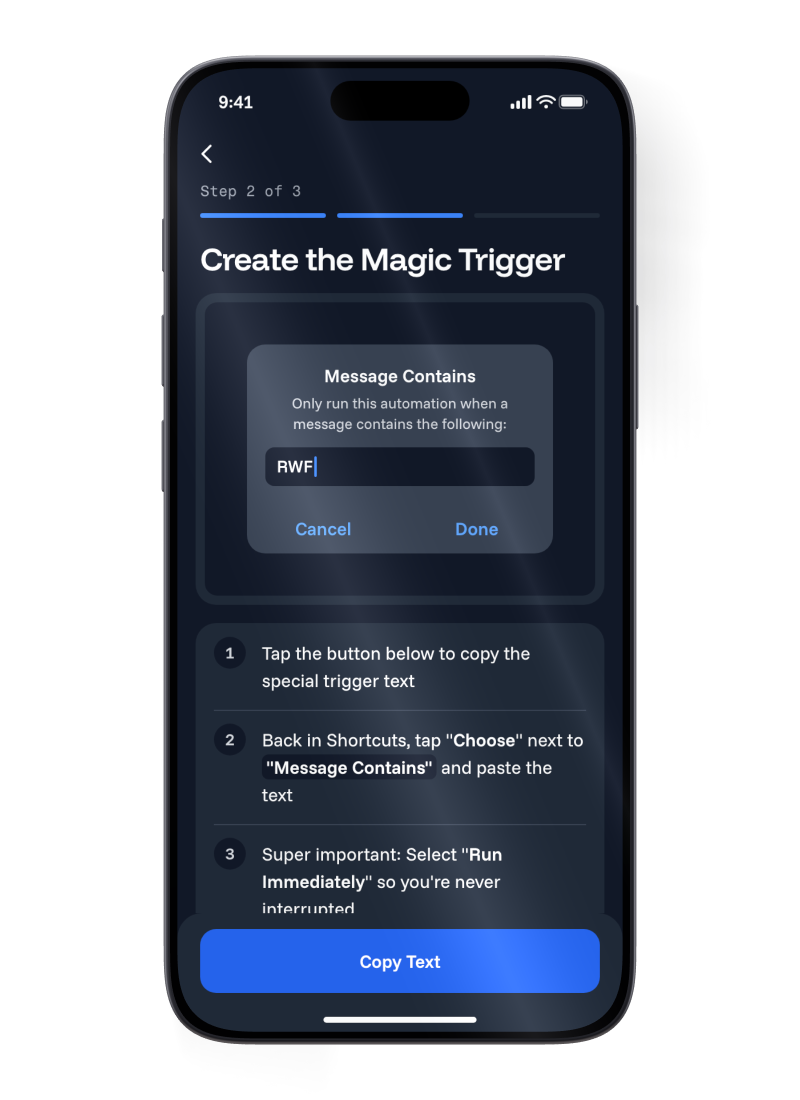
Step 2 of 3 in Manie on an iPhone. A Message Contains box with RWF typed in, with Cancel and Done buttons, and a Copy Text button below
  1. Step 2.1

    Tap Choose next to Message Contains.
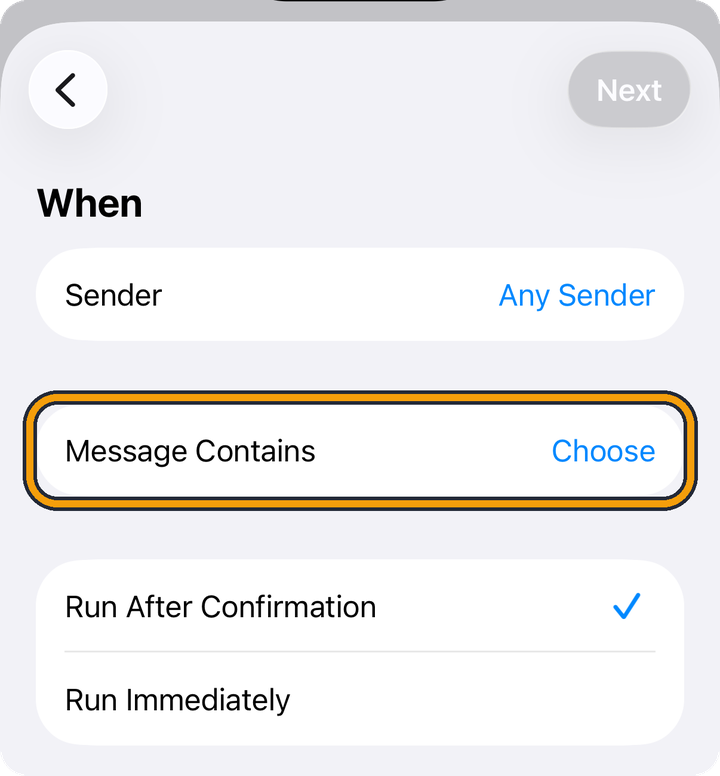
    The When screen of a Message automation. Sender says Any Sender, and Message Contains says Choose. Run After Confirmation is ticked, with Run Immediately below it. The orange outline marks the Message Contains row.
  2. Step 2.2

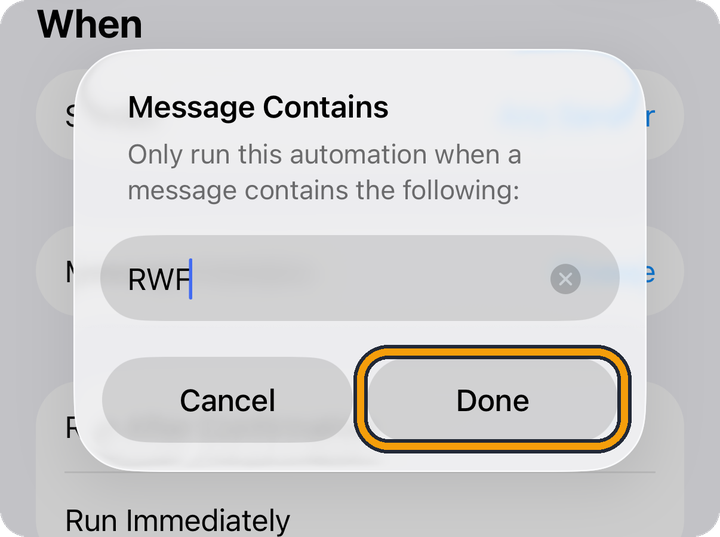
    Type RWF, or paste it. The Copy Text button in Manie copied it for you.
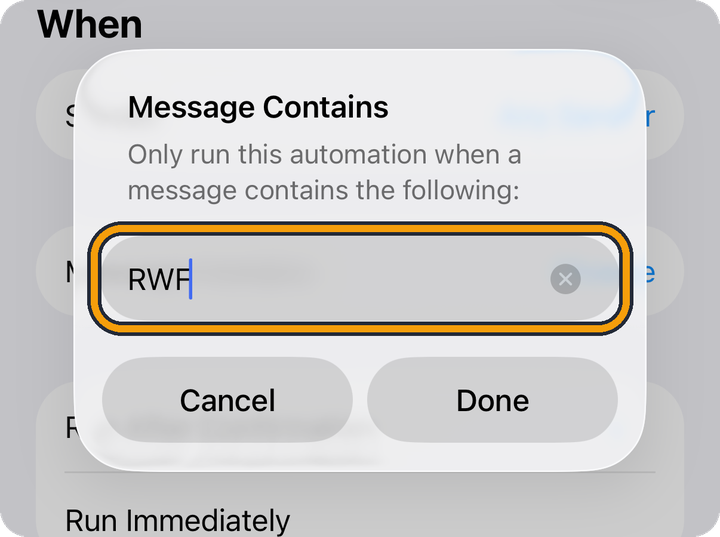
    A box titled Message Contains, with RWF typed in its field, above the buttons Cancel and Done. The orange outline marks the field.
  3. Step 2.3

    Tap Done.

    The same Message Contains box, with RWF in the field. The orange outline marks the Done button.
  4. Step 2.4

    Tap Run Immediately, so you are never interrupted.
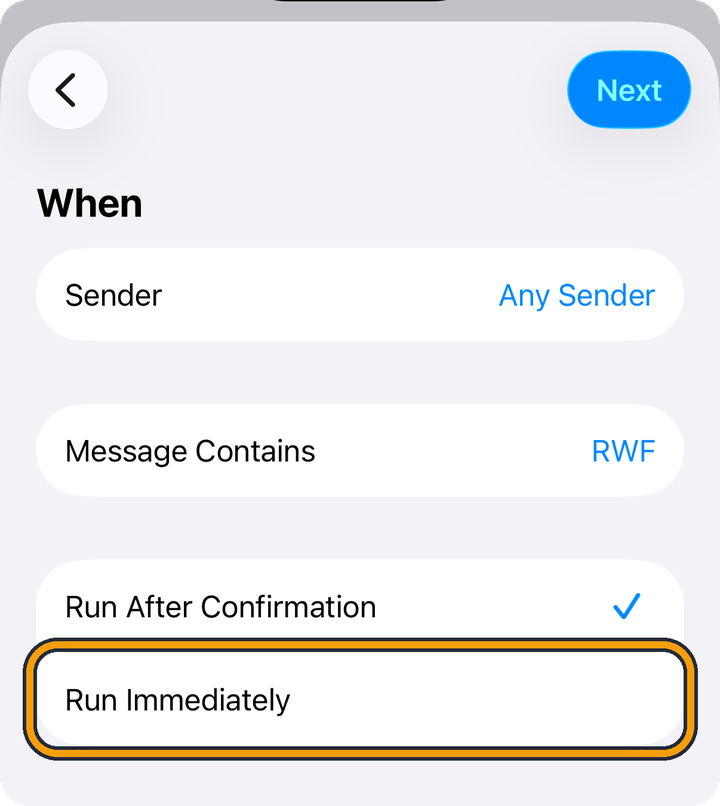
    The When screen again. Message Contains now says RWF, and Run After Confirmation is still ticked. The orange outline marks Run Immediately.
  5. Step 2.5

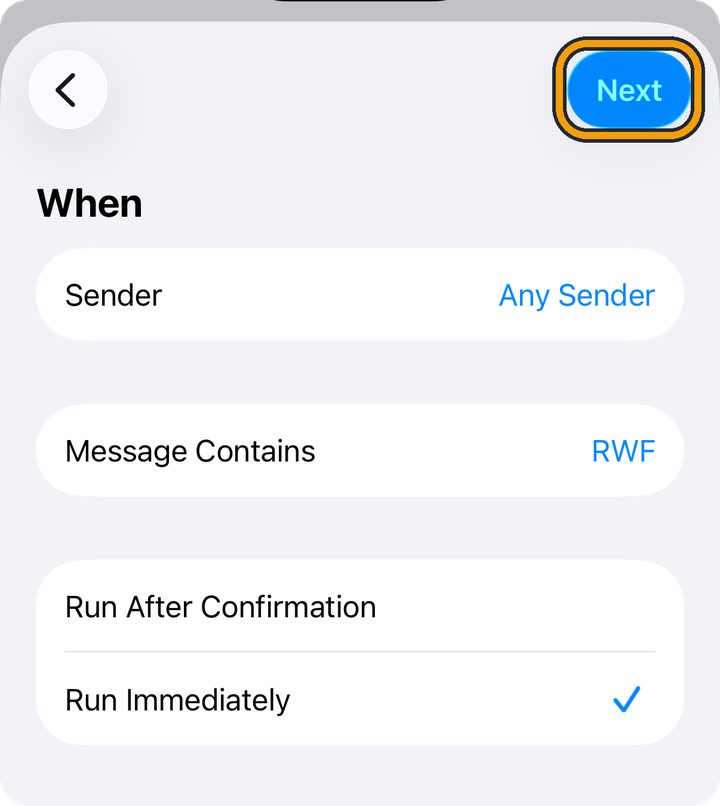
    Tap Next, at the top right.

    The When screen with Run Immediately ticked. The Next button at the top right is blue. The orange outline marks Next.

Go back to Manie and tap Next.

Step 3

Pick Create Manie Transaction

You land on Step 3 of 3. Tap Go to Shortcuts. Then follow the small steps below.
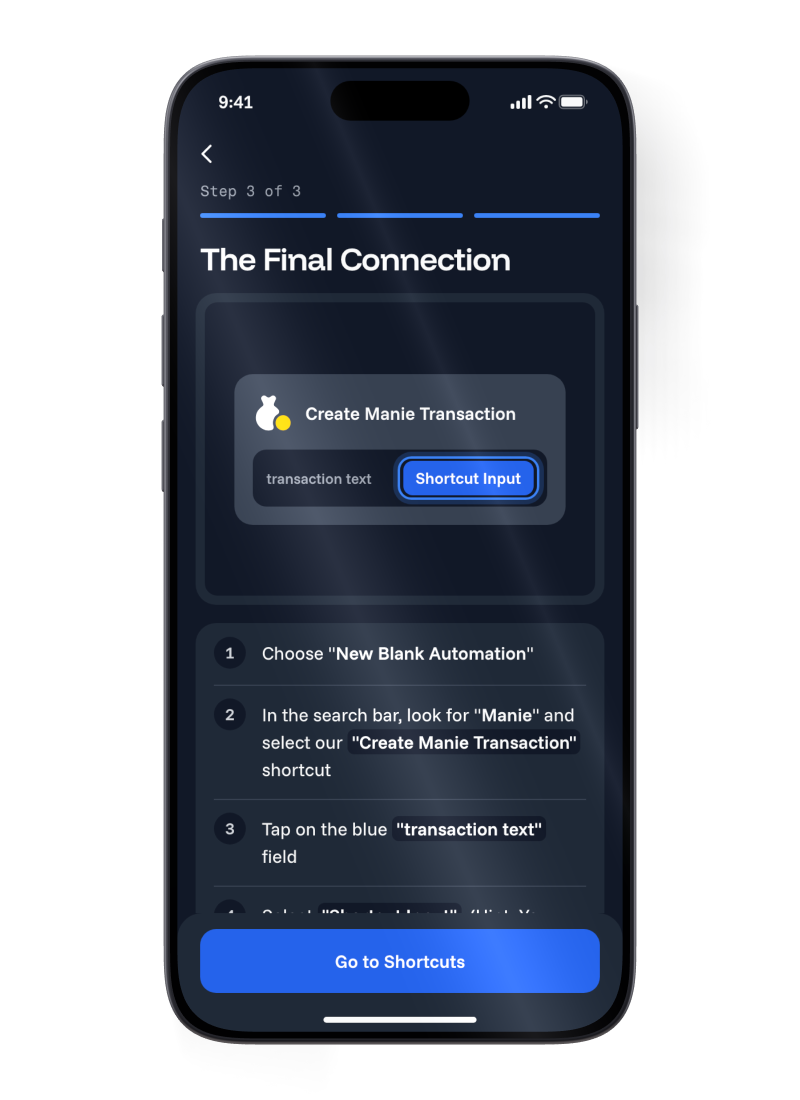
Step 3 of 3 in Manie on an iPhone. The Create Manie Transaction action, with Shortcut Input chosen in its transaction text field, and a Go to Shortcuts button
  1. Step 3.1

    Tap Create New Shortcut. If you see New Blank Automation instead, tap that.
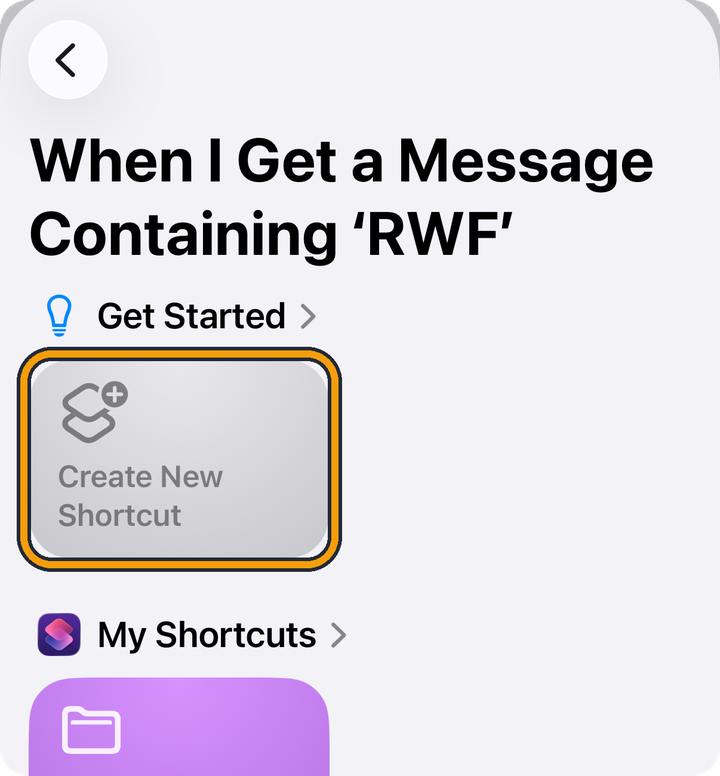
    A screen titled When I Get a Message Containing ‘RWF’. Under Get Started, a tile says Create New Shortcut. The orange outline marks that tile.
  2. Step 3.2

    Tap Search Actions and type Manie.
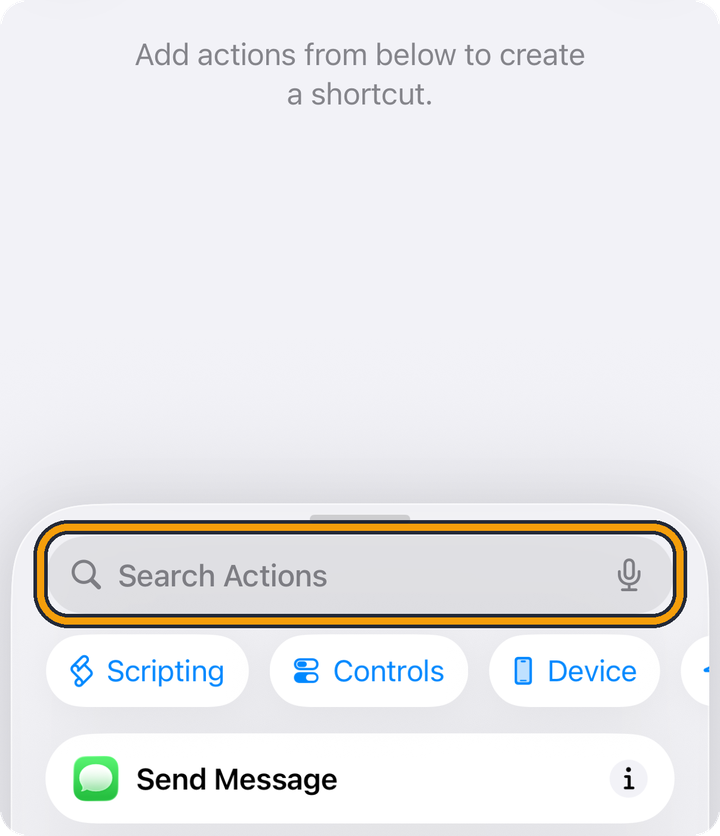
    An empty editor that says Add actions from below to create a shortcut. At the bottom, a Search Actions box sits above chips named Scripting, Controls and Device. The orange outline marks the Search Actions box.
  3. Step 3.3

    Tap Create Manie Transaction.
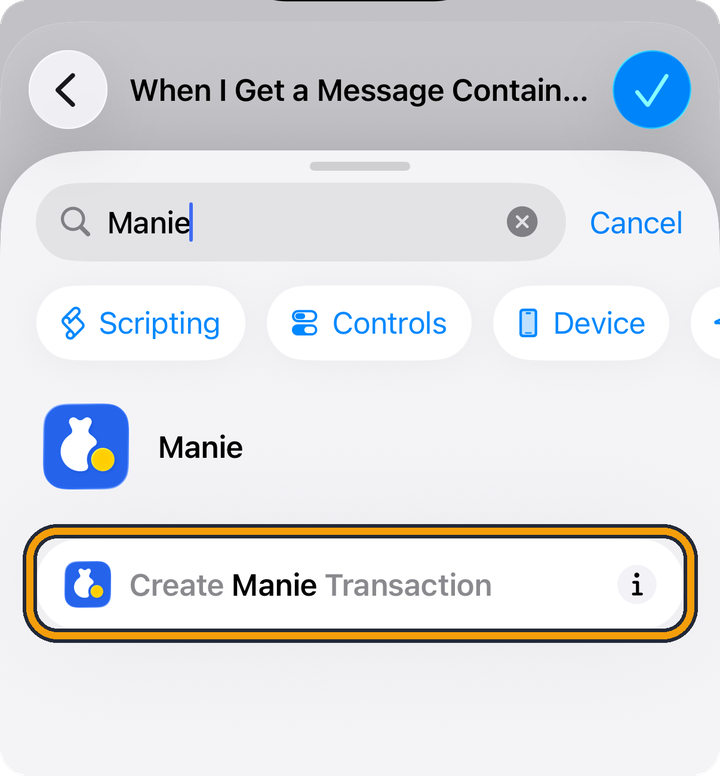
    Search Actions with Manie typed in. The results show the Manie app, and below it the action Create Manie Transaction. The orange outline marks the action.
  4. Step 3.4

    Tap the blue Transaction Text field.
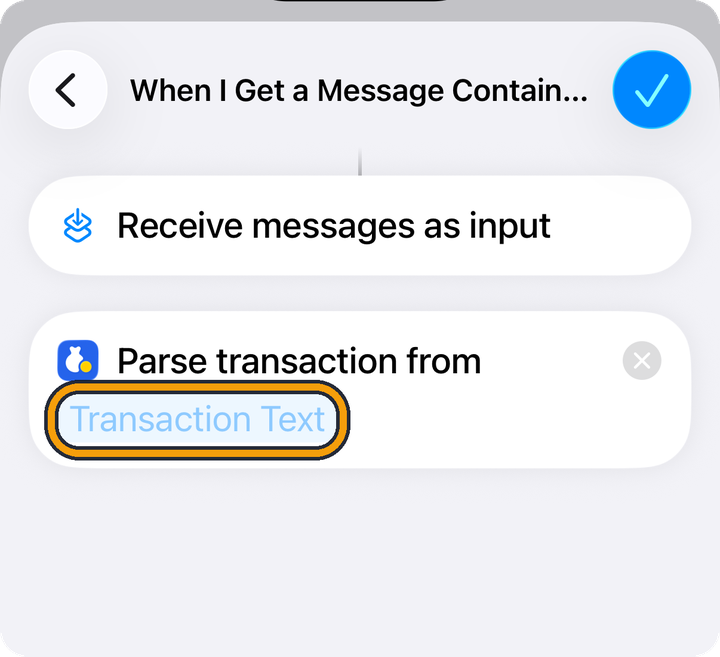
    The shortcut now has two cards. One says Receive messages as input. The other says Parse transaction from, followed by a blue field named Transaction Text. The orange outline marks the Transaction Text field.
  5. Step 3.5

    Tap Select Variable, above the keyboard.
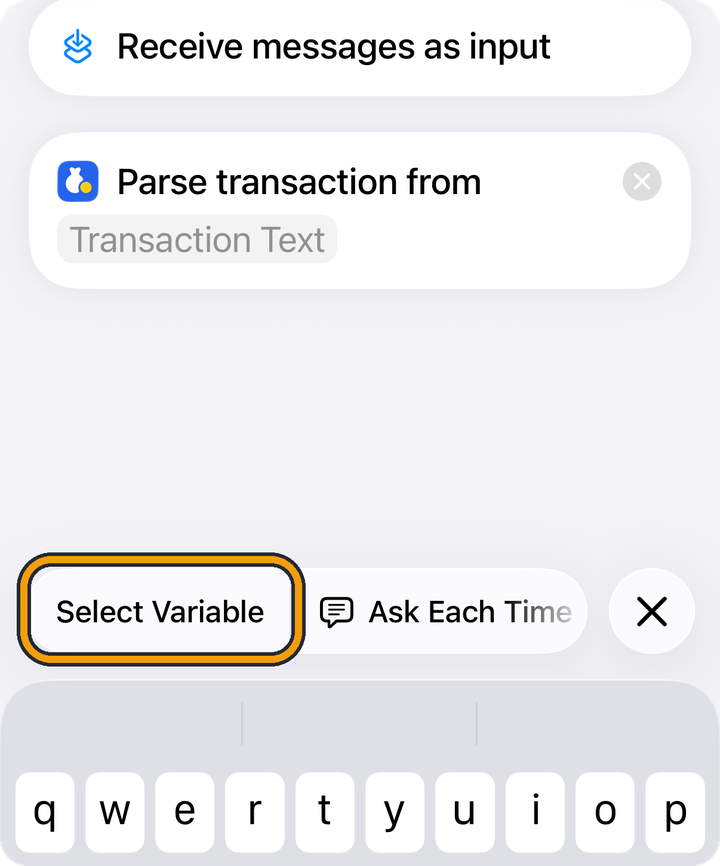
    The keyboard is open. Above it, a bar shows Select Variable, Ask Each Time and an X. The orange outline marks Select Variable.
  6. Step 3.6

    Tap the blue Shortcut Input chip, under Receive messages as input. If a list opens instead, you may need to scroll all the way to the bottom to find it.
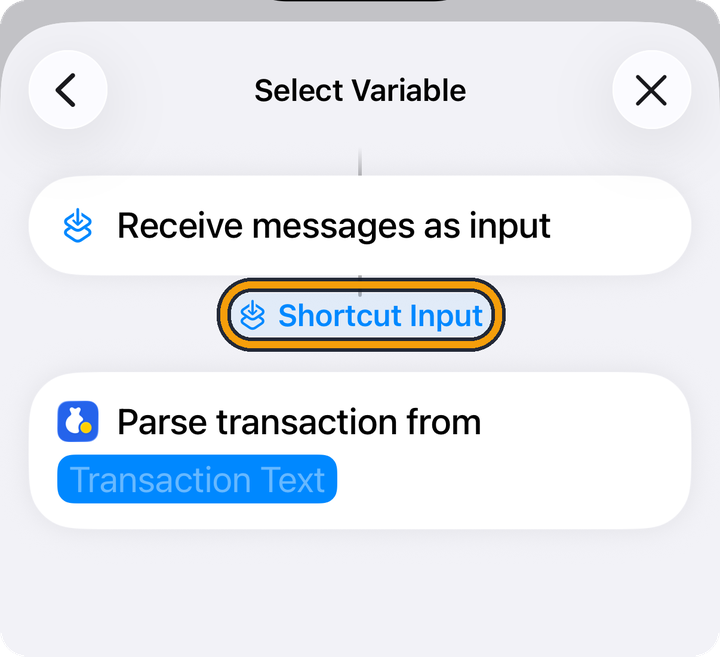
    The Select Variable screen. Between the Receive messages as input card and the Parse transaction card, a blue chip says Shortcut Input. The orange outline marks the chip.
  7. Step 3.7

    Tap the blue check mark at the top right to save. On some versions it says Done.
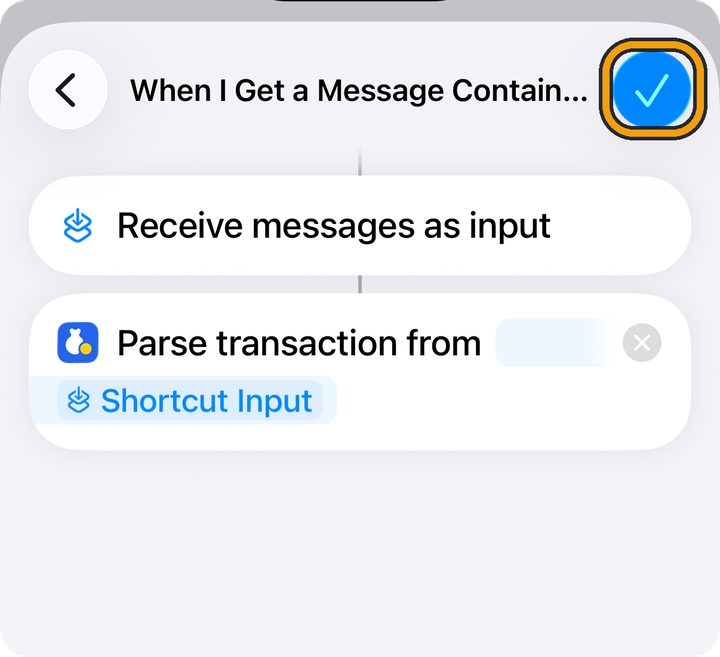
    The shortcut after choosing Shortcut Input. The Parse transaction from card now ends with Shortcut Input. The orange outline marks the blue check mark at the top right.

Check it

  1. Step 3.8

    Your automation now shows on the Automation screen. Tap it to open it.
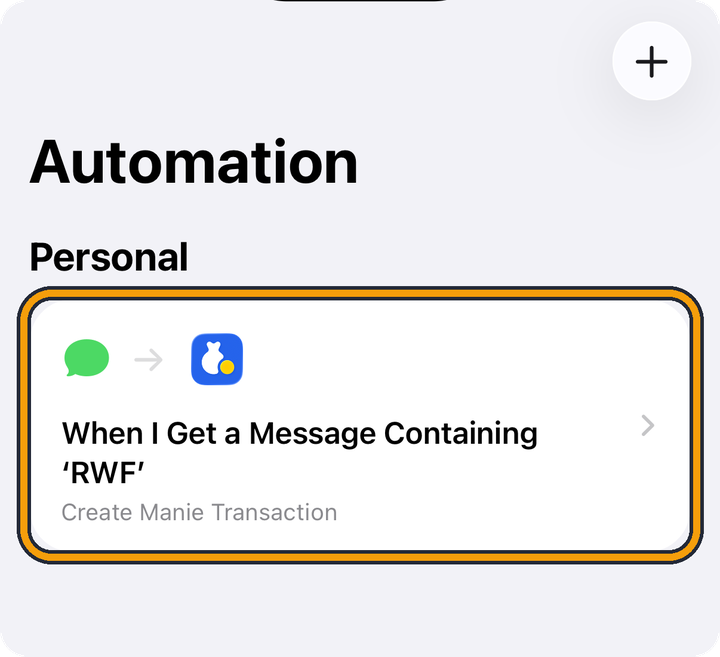
    The Automation screen, with a Personal section. One card shows a green message bubble, an arrow and the Manie icon, then When I Get a Message Containing ‘RWF’, with Create Manie Transaction below it. A plus button sits at the top right. The orange outline marks the card.
  2. Step 3.9

    Check three things.

    • Automation says Run Immediately.
    • Under When, you see When I Get a Message Containing ‘RWF’.
    • Under Do, you see Create Manie Transaction.

    Then tap Done.
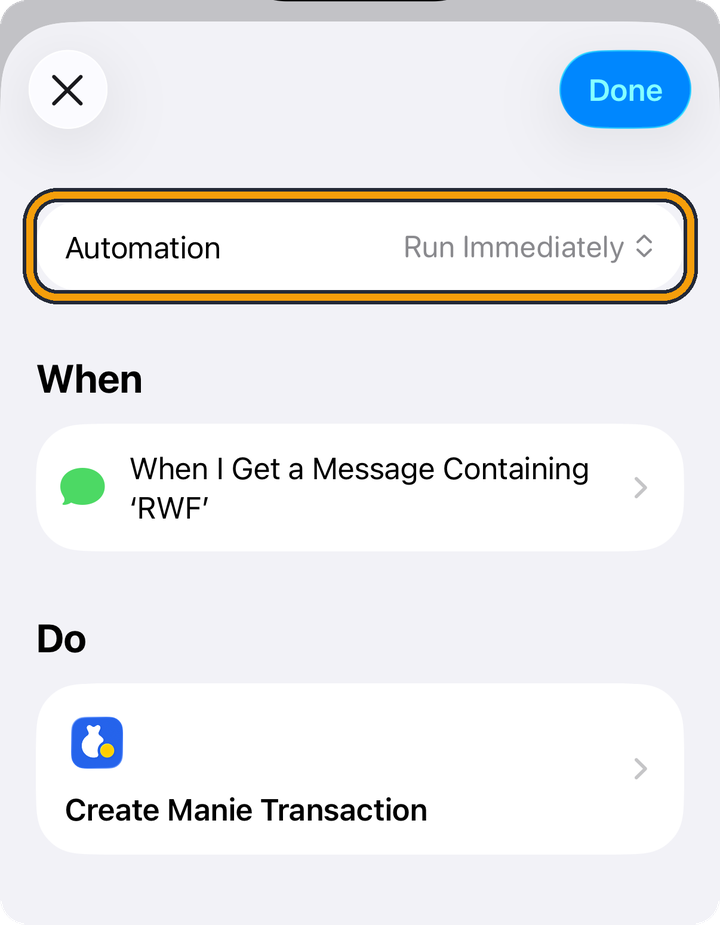
    The opened automation. At the top, Automation says Run Immediately. Under When it says When I Get a Message Containing ‘RWF’, and under Do it says Create Manie Transaction. A Done button sits at the top right. The orange outline marks the Automation row, which is there to read, not to tap.

Go back to Manie and tap the button at the bottom. That ends the setup.

If something does not look right

I want to see the steps again

On an empty dashboard, tap Run Setup Again. You can also tap Settings at the bottom of Manie, then Reset Setup Guide. Confirm with Reset. Manie shows the setup guide again.

I cannot find Shortcut Input

Tap the blue Transaction Text field, then tap Select Variable above the keyboard. On iOS 26, a blue Shortcut Input chip appears under Receive messages as input. Tap it. If a list opens instead, you may need to scroll all the way to the bottom to find it.

Some payments are missing

Manie reads the message formats it knows and leaves out the rest. Texts it cannot read stay out of the list.


What next

Guides

Short how-tos for Manie, written for the phone you have.

See all guides

Get Manie

Free to download. No ads.

Download on the App Store

Sample figures

Updated 26 Oct 2026. Something unclear? Contact us.