


On this page7 steps
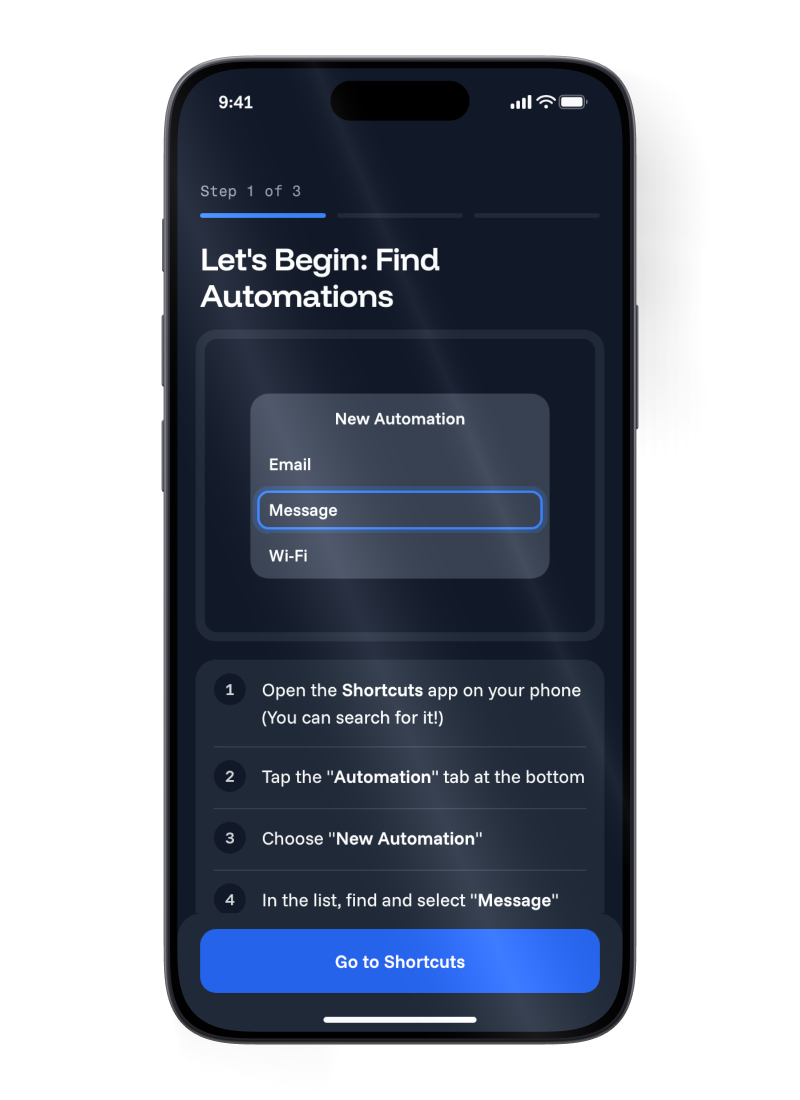
Manie reads the payment texts your phone already gets from M-Money and AirtelMoney, and puts them in a list. On Android it does this by itself, once you allow it. This guide takes you from install to your first list.

Before you start
- An Android phone, version 7 or later.
- An MTN or Airtel mobile money line on that phone.
- Your payment texts still on the phone. Manie reads the ones that are there.
Install Manie
Open Google Play, search for Manie, and tap Install. Look for Manie, Mobile Money Made Easy.


Open Manie and find the banner
You land on the dashboard. It is empty at first. Under the totals, a banner says Auto-track transactions.
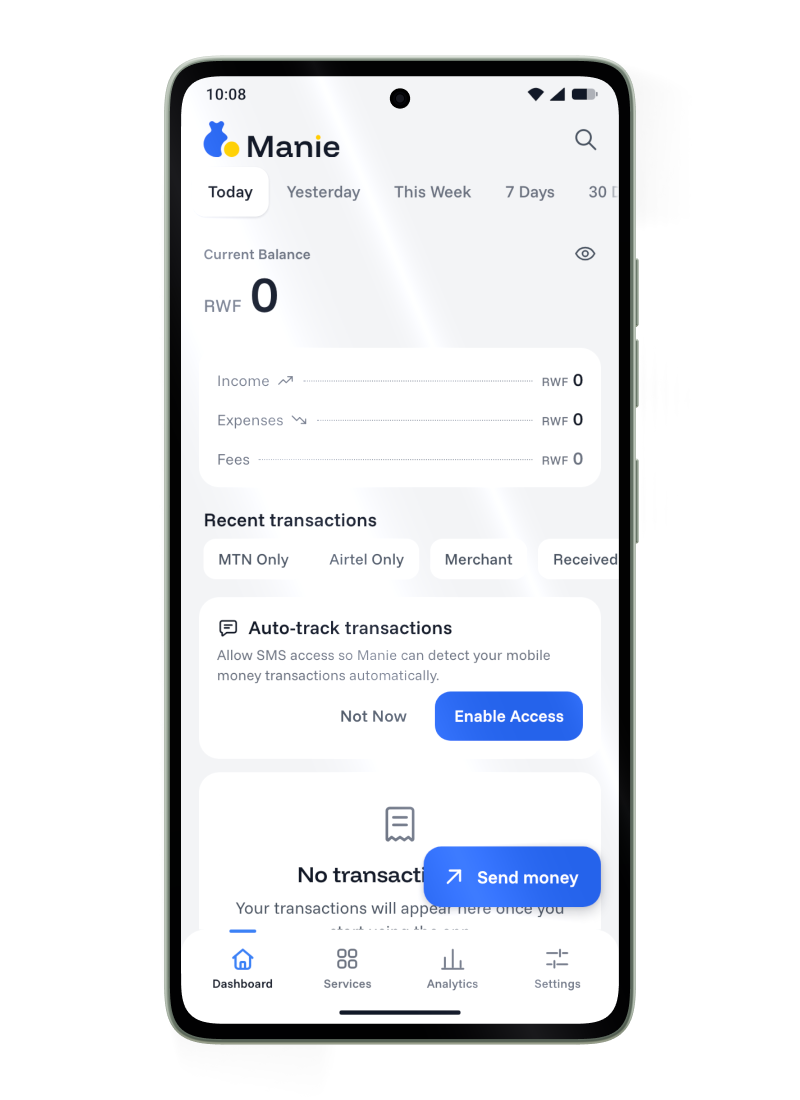
Tap Enable Access
Android asks if Manie can use SMS. Tap Allow. The wording of that prompt is Android's own and differs a little between phones.
Wait while it reads your past texts
The first time, Manie reads your past payment texts and shows a progress message. If you have many, it can take a moment. After that, new payments appear as they arrive.

Look at your list
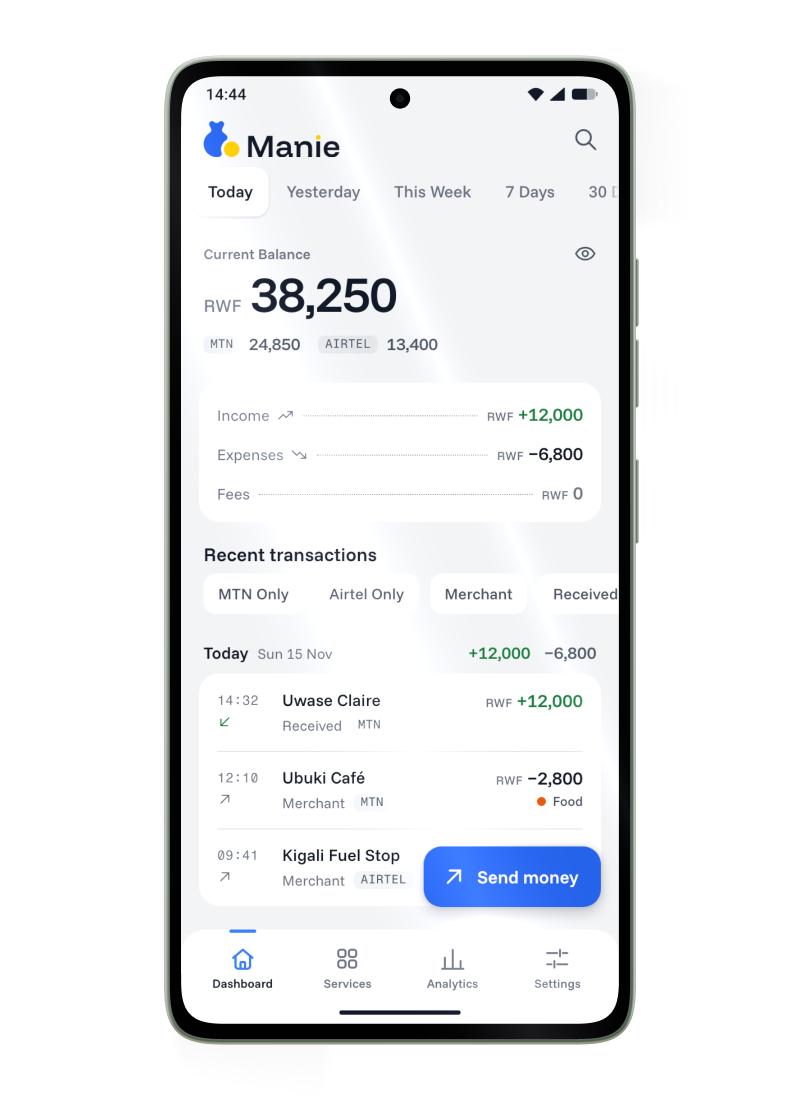
Payments are grouped by day. Money in is green. Tap a payment to see its details, or to share a receipt.

Allow contacts and calls when Manie asks, Optional
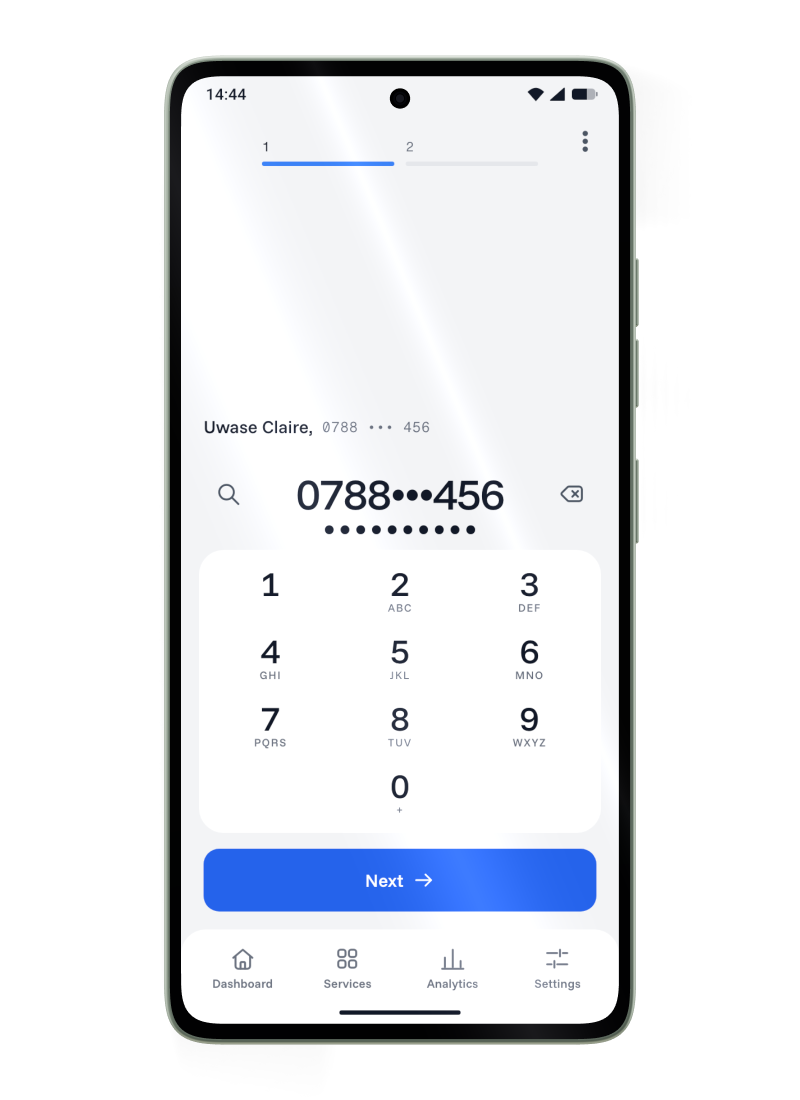
When you pick a recipient in Send money, Manie asks to see your contacts so it can suggest people. The first time you dial a code, it asks to place calls. Both are optional, but Manie cannot place a call without the second.
Set a daily limit, Optional
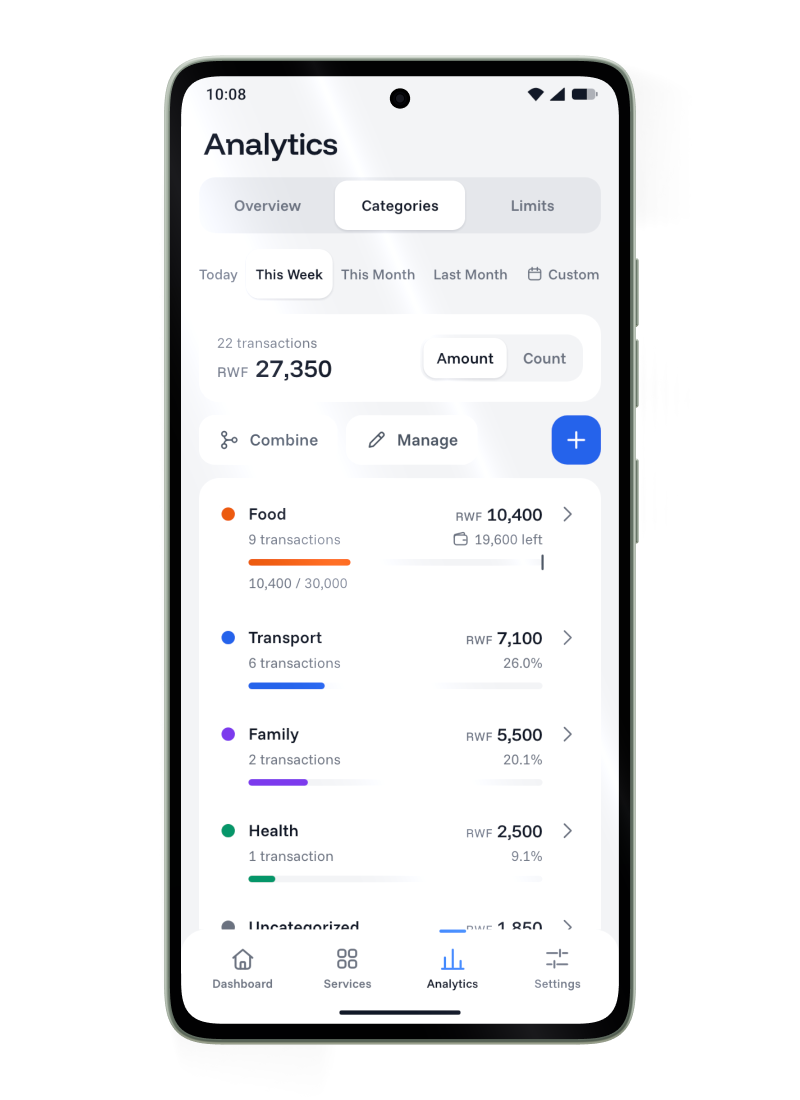
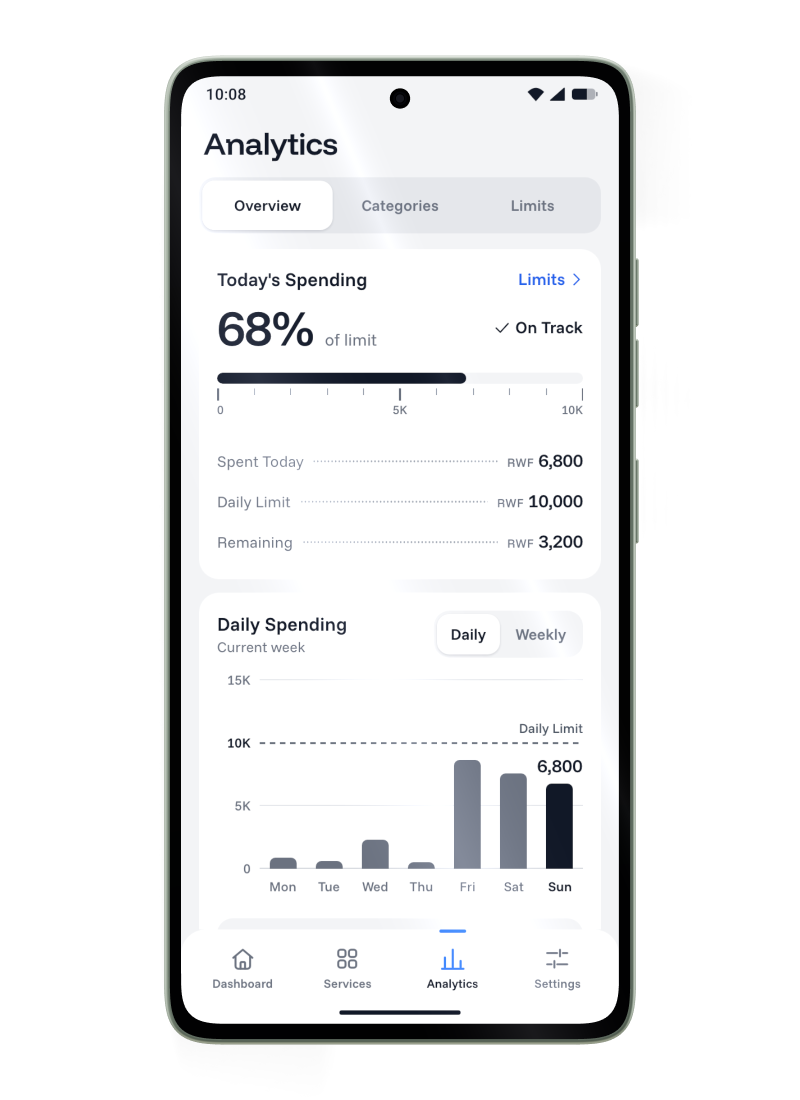
Open Analytics, then Limits, and slide to an amount. If Android asks about notifications, allow them. Manie reminds you at 80 percent of the limit, and again if you pass it.
If something does not look right
I tapped Not Now
The banner stays on your dashboard. Tap Enable Access whenever you are ready.
I tapped Don't allow
Android may stop asking. Open Android Settings, then Apps, then Manie, then Permissions, then SMS, and allow it. Manie also shows an Open Settings button when this happens.
My list is empty
Manie reads texts from M-Money and AirtelMoney. Check that those texts are on your phone, then open Manie again.
Some payments are missing
Manie reads the message formats it knows and leaves out the rest. Texts it cannot read stay out of the list.